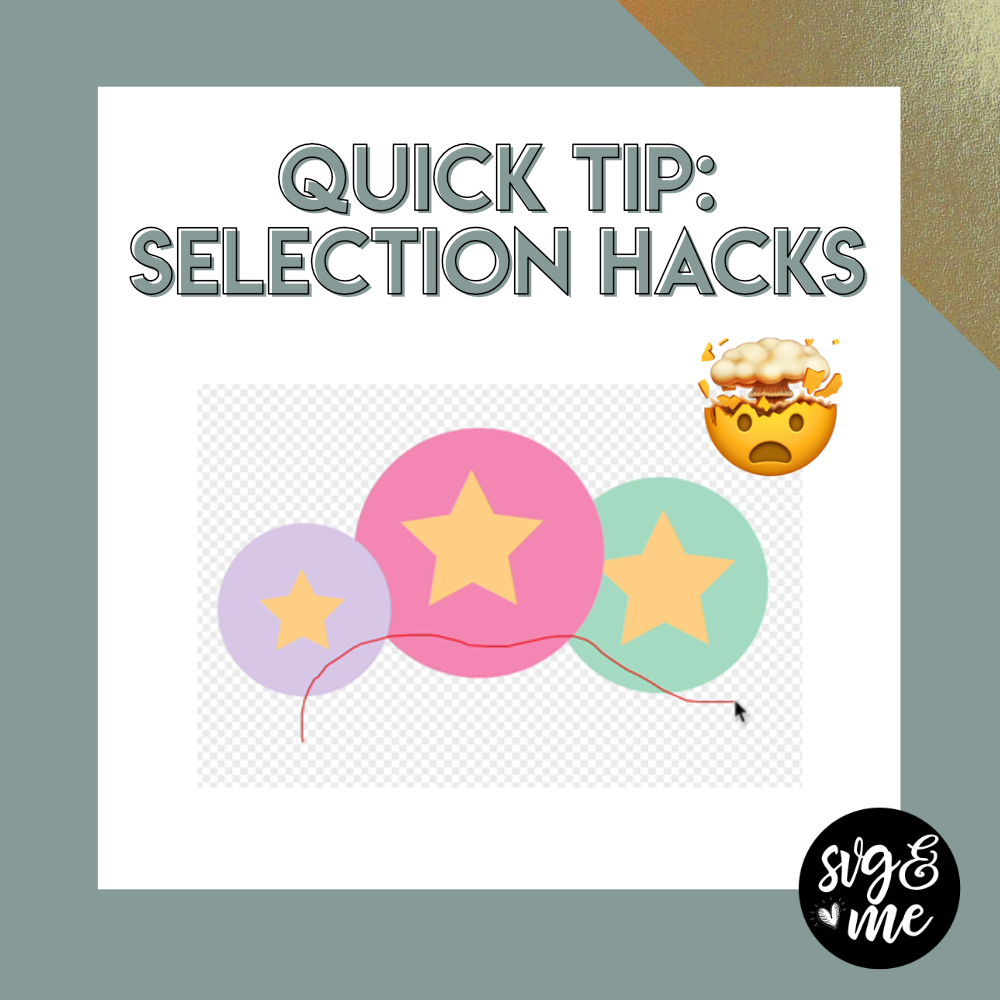
Inkscape Quick Tip #5

Phew! Finally no more wasting time duplicating objects one by one…talk about a time saver!

We use a flag SVG in this example, but just think about how many different uses there are for this hack…making stickers, making labels, polka dots, stripes…the list goes on and on.

Not a member yet? Join the SVG & Me lifetime membership to access 100+ videos like this one!

Which one was your favorite hack I shared this week?:

Have you attended all of our free trainings?

(Click the image preview below to register now!)
Inkscape Quick Tip #4

Bet you never would have believed me if I told you that you could make a seamless pattern in less than 5 minutes BUT NOW YOU CAN!

I hope you loved today’s hack and if you want to learn more about designing your own patterns I teach you how to create seamless patterns with clipart in our Inkscape course!

Not a member yet? Join the SVG & Me lifetime membership to access 100+ videos like this one!

…and don’t miss the other Inkscape hacks we already shared:

Which of these tutorials would you LOVE to watch?

Members get instant access to all of these and so many more in our membership!

Inkscape Quick Tip #3

Don’t you absolutely love this color block effect that you can apply to both shapes and text in Inkscape?

If you’re a member, I share a longer extended version of this video with even more tips on how to use this technique (including a really cool mosaic effect) so head over to the membership site and check out the tutorial I posted there!

Not a member yet? Join the SVG & Me lifetime membership to access 100+ videos like this one!

…and don’t miss the other Inkscape hacks we already shared:

Inkscape Quick Tip #2

🤯 Quick Inkscape Hack #2

Finally! An easy way to convert single color SVG designs into multi color designs in just seconds with the awesome Path > Split Path feature from Inkscape. Total time saver, right?

These are perfect examples of why I recommend crafters learn to use Inkscape for creating SVGs because it is just so much more powerful and will save you SO MUCH time compared to using a program like Cricut Design Space.

Stay tuned for another hack tomorrow!

Are you hooked on creating your own SVGs and want to learn more now?

Check out our free training below or join our lifetime membership and find out why members say it is “THE BEST course for learning to use Inkscape”

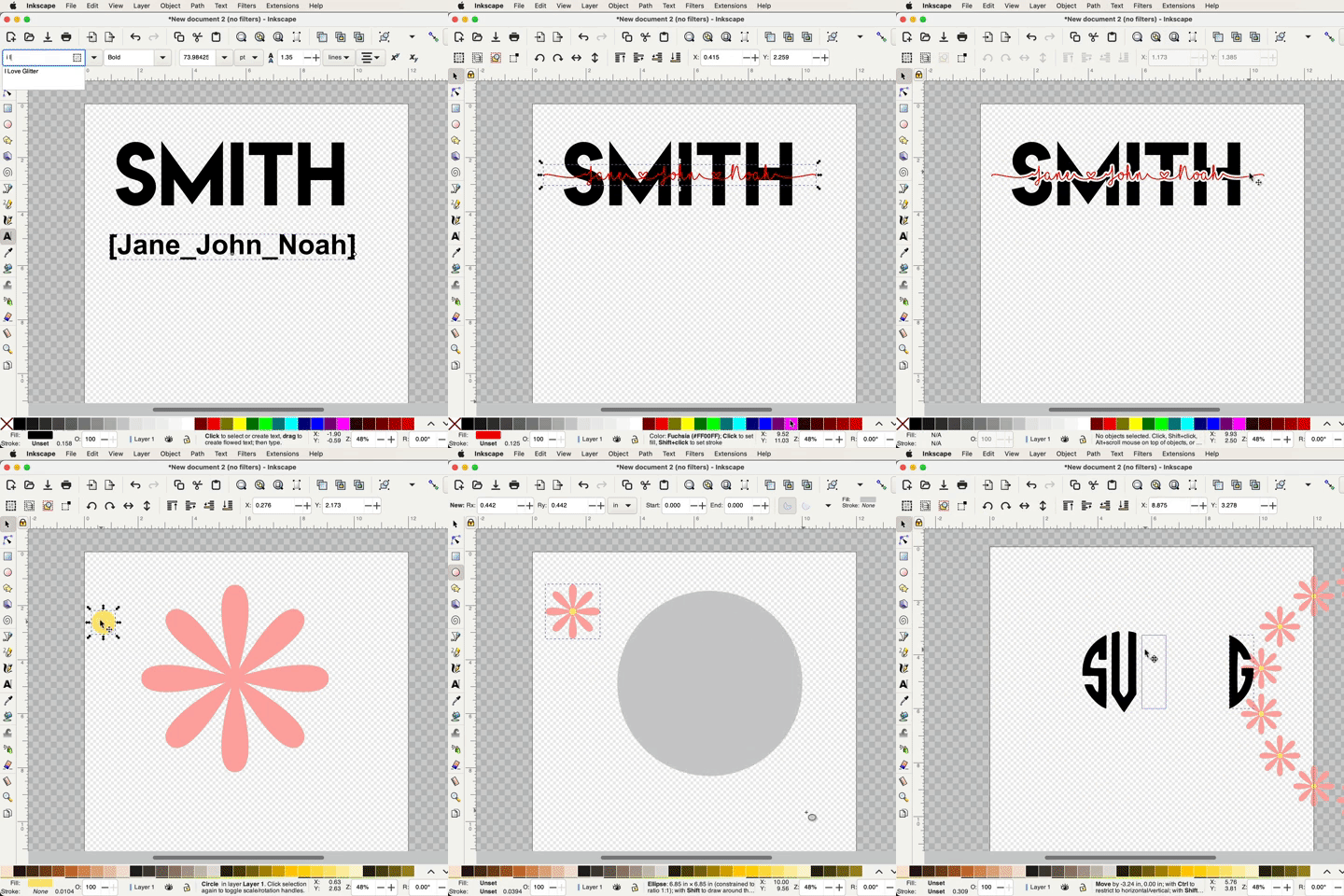
Want to Learn How to Make a Knockout Name or Custom Monogram Frame?

Inkscape Quick Tip #1

🤯 Quick Inkscape Hack #1

How cool was that?! Hope you loved today’s Inkscape hack and make sure to be on the look out for the next tip in your email inbox tomorrow – yay! And if you can’t wait and want to learn more, check out our free training below on the #1 skill every cutting machine crafter should know how to do!

Stop wasting your time using free online SVG converters with poor results!

Help! My Shapes Are Disappearing in Inkscape

Help! My Shapes Won’t Show Up in Inkscape

This is one of the most common troubleshooting questions I get asked, but not to worry…it’s super easy to fix!

The reason this happens is because the shapes are being set to a transparent fill so it looks like nothing is there.

Find out how to control the opacity of your color fills and quickly fix this in our video below:

Links Mentioned in Video:

How to Upload a SVG

How to Upload a SVG

First of all, you may be wondering…

What the heck is a “SVG”?

Well, it stands for “Scalable Vector Graphic” and is just a fancy name for the file type that works best with cutting machines like Cricut, Silhouette, ScanNCut, etc (almost all cutting machine types can use SVG files).

SVGs are highly preferred over JPG or PNG images for a couple reasons:

  • You can upload them as layered designs where you can easily ungroup the various pieces and cut them out of different colors.
  • They can be resized to any size without getting pixelated. Pretty cool, right?

Now that you understand what they are and why they are the best files to use, let’s walk through how to upload them into your cutting software!

In this video I will cover how to upload for all 3 of the most popular machine types: Cricut, Silhouette, and Brother ScanNCut machines:

Video Timestamps:

  • 0:00 How to Download and Unzip the SVG
  • 1:50 How to Upload to Cricut Design Space
  • 4:10 How to Upload to Silhouette Studio
  • 8:41 How to Upload to Canvas Workspace (ScanNCut)

Links Mentioned in Video (affiliate links):

How to Install Inkscape

How to Install Inkscape

One of the best things that any crafter can do to get the most out of their cutting machine is learning to use Inkscape!

What is Inkscape?

Inkscape is a free (yep, you heard that right!) program that works with both Windows and Mac computers and has all the same essential skills that expensive programs like Illustrator have, but for zero cost.

In the videos below I will walk you through where and how to download and install Inkscape on your computer (it’s not compatible with iPads or phones).

Here’s the link to the latest version of Inkscape that I recommend installing.

Oh, and if you have a previous version of Inkscape installed on your computer, go ahead and uninstall it before installing the latest version.

How to Install Inkscape on a Windows (PC) Computer:

How to Install Inkscape on a Mac Computer: